Introduction
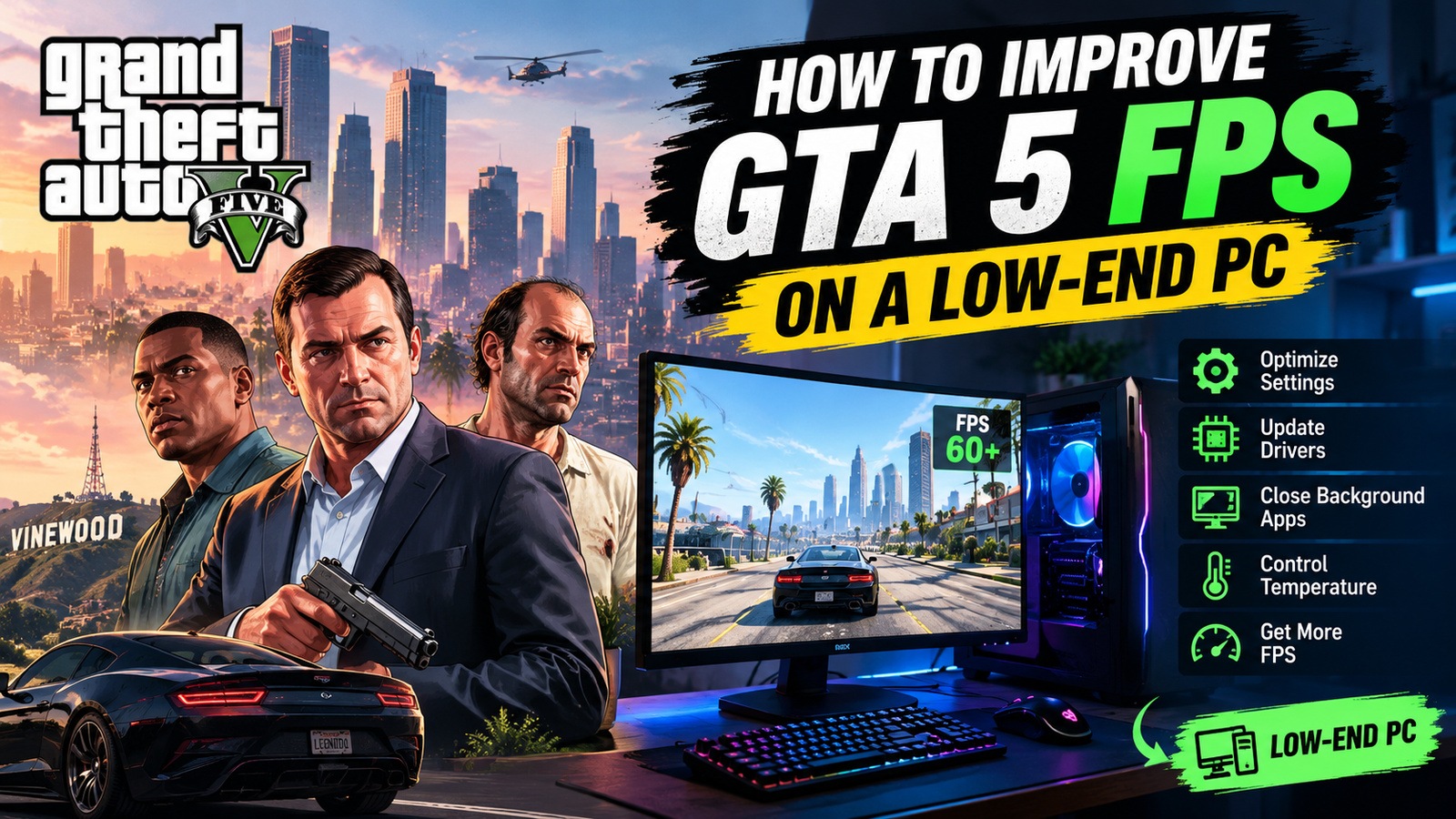
Grand Theft Auto V is still an enjoyable open-world game, but playing it on an older or low-end PC can sometimes be frustrating. Low frame rates, sudden stuttering, long loading times, and freezing can make driving through Los Santos or completing missions less enjoyable.
The good news is that you may be able to improve performance without buying a new computer. Adjusting graphics settings, closing unnecessary background programs, updating your graphics drivers, and checking your system’s limitations can help.
However, every computer is different. A PC with an older processor and integrated graphics will not perform the same as a system with a dedicated graphics card. These tips are starting points, not a guarantee of a particular FPS.
1. Check Your PC Specifications First
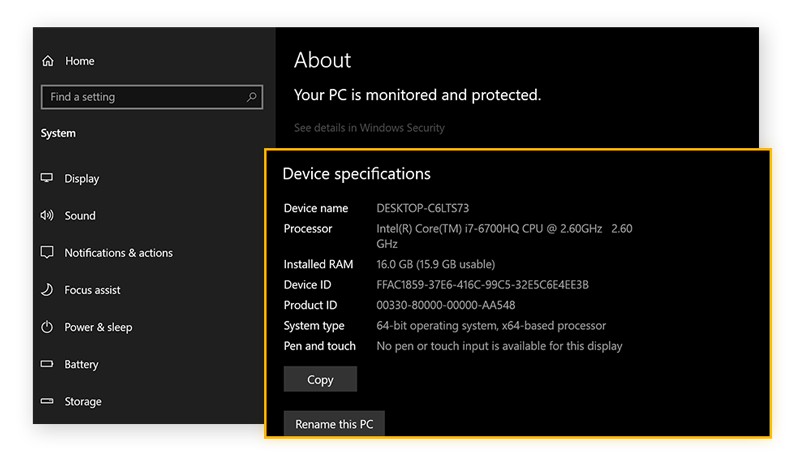
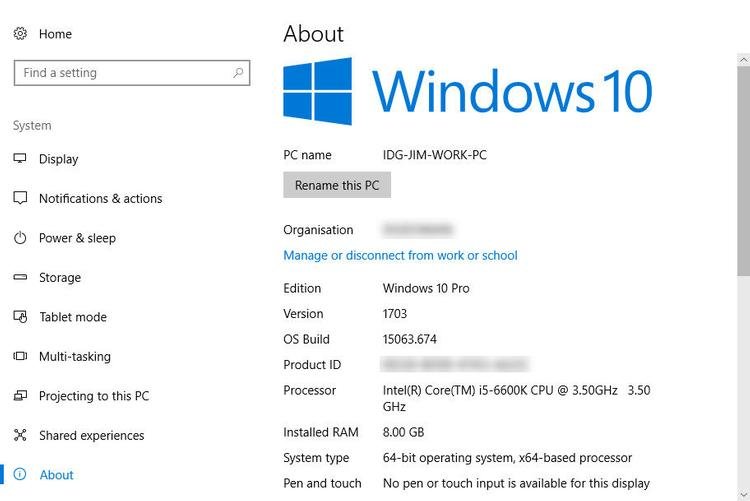
Before changing settings, understand what hardware your computer has. This helps you choose settings that match your system rather than following advice intended for a powerful gaming PC.
Press Ctrl + Shift + Esc to open Task Manager, then select the Performance tab. Here, you can check your CPU, memory, disk, and GPU information.
Pay attention to these components:
- Processor (CPU): Handles game logic, traffic, physics, and other calculations.
- Graphics card (GPU): Renders the game’s visuals, effects, and environments.
- RAM: Holds the data needed by Windows and running applications.
- Storage: An SSD can improve loading and general responsiveness compared with a slower hard drive, although it does not automatically increase average FPS.
Also check whether you are playing GTA V Enhanced or GTA V Legacy. Their hardware demands differ, so make sure your computer meets the requirements for the version you own.
2. Use Lower Graphics Settings for Better FPS
Graphics settings are one of the first things to adjust when GTA 5 runs slowly. Start with lower settings, test the game, and increase individual options only when performance remains smooth.
The following table provides a reasonable starting point for a low-end PC. It is not a universally optimal configuration.
| Graphics setting | Suggested starting point |
|---|---|
| Screen resolution | 1280 × 720 |
| DirectX version | Use a supported option recommended for your game version |
| FXAA | On, if performance remains acceptable |
| MSAA | Off |
| Texture quality | Normal or Low, depending on available VRAM |
| Shader quality | Normal or Low |
| Shadow quality | Low |
| Reflection quality | Low |
| Reflection MSAA | Off |
| Water quality | Normal or Low |
| Grass quality | Low |
| Post FX | Normal or Low |
| Motion blur | Reduce or disable if preferred |
| Population density | Low |
| Population variety | Low |
| Distance scaling | Low |
| Advanced graphics | Disable demanding options |
Important: The available settings and their effects may vary between GTA V versions and hardware configurations.
Why do these settings matter?
Resolution: Lowering resolution reduces the number of pixels your graphics card must render. If your GPU is the main limitation, this can help improve frame rates.
MSAA and reflections: Anti-aliasing and detailed reflections can be demanding. Turning off MSAA and reducing reflection quality are sensible first steps on weaker graphics cards.
Grass and shadows: Detailed grass, shadows, and environmental effects can place additional demands on your system. Lowering them may improve performance in demanding outdoor areas.
Population density: GTA 5 has busy streets with pedestrians and traffic. Reducing population density can help if your processor struggles in crowded locations.
Distance scaling: Reducing how much distant detail is displayed can ease the workload on some systems.
Do not change every option at once and assume the result is better. Adjust a few settings, repeat the same test, and keep the configuration that works best on your PC.
3. Lower the Resolution If Your Graphics Card Is Struggling
Running a game at a high resolution can be difficult for older graphics hardware.
If you currently play at 1920 × 1080 and experience consistently low FPS, try 1600 × 900 or 1280 × 720. The lower resolution may make the picture less sharp, but it can reduce the GPU workload.
Test the result in the same location and under similar conditions. If the frame rate improves substantially, graphics processing may be a major limitation.
If the FPS barely changes, your processor, memory, game settings, or another factor may be responsible. Lowering resolution is useful, but it cannot fix every performance problem.
4. Close Unnecessary Background Applications
Running many applications while gaming can consume RAM and processor resources. Web browsers with numerous tabs, video editing software, downloads, and other demanding programs may compete with GTA 5.
Before launching the game:
- Save your work and close applications you do not need.
- Open Task Manager using Ctrl + Shift + Esc.
- Check the Processes tab for programs using unusually high CPU, memory, or disk resources.
- Close only applications you recognize and do not need.
- Restart your PC if it has been running for a long time and performance seems unusually poor.
Avoid ending unfamiliar Windows processes. Some are essential for the operating system or security software.
You can also review startup applications to prevent unnecessary programs from opening automatically. Microsoft’s Windows performance guide explains how to manage startup apps, storage, and other performance issues.
5. Update Your Graphics Drivers Safely
Outdated or damaged graphics drivers can contribute to game crashes, visual problems, and performance issues.
Identify your graphics hardware first. If you have an NVIDIA or AMD graphics card, use the manufacturer’s official website or software to obtain the appropriate driver.
For integrated graphics, check the computer manufacturer’s support page or the relevant graphics manufacturer’s official resources.
After installing a suitable update:
- Restart your computer if required.
- Launch GTA 5.
- Test the same game area you used before.
- Check whether the problem improves or becomes worse.
A newer driver does not guarantee higher FPS on every computer. If an issue begins immediately after an update, check the manufacturer’s troubleshooting guidance before making further changes.
Rockstar also recommends checking graphics drivers and verifying game files when troubleshooting GTA V PC problems. See the official Rockstar Games support guide.
6. Enable Appropriate Windows Gaming Settings
Windows settings can help your PC manage resources more effectively, although the results depend on your hardware.
Turn on Game Mode
On supported Windows versions, open Settings, select Gaming, and choose Game Mode. Turn it on if it is available.
Game Mode is designed to help prioritize the gaming experience, but it will not turn weak hardware into a high-performance gaming system.
Select the correct graphics processor
If your laptop has both integrated graphics and a dedicated GPU, Windows may let you select which GPU an application should use.
On Windows 11, open Settings, then System, Display, and Graphics. Find or add the game’s executable, select Options, and choose the appropriate high-performance GPU if available.
The exact menu and options can vary by Windows version and hardware.
Keep Windows updated
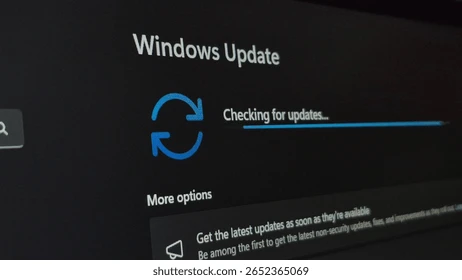
Install appropriate Windows updates and check for relevant driver updates. Updates can fix compatibility issues, but you should avoid installing unofficial performance tools from unknown websites.
7. Check for Overheating
Sometimes GTA 5 runs smoothly at first but slows down after several minutes. One possible reason is overheating.
When a processor or graphics card becomes too hot, it may reduce its operating speed to protect itself. This can lead to lower FPS or inconsistent performance.
Look for warning signs such as:
- Fans becoming unusually loud.
- Performance dropping after extended play.
- A laptop becoming excessively hot.
- Sudden slowdowns during demanding scenes.
Keep air vents clear and use the computer on a firm surface. Dust buildup can restrict airflow, so clean the system safely according to the manufacturer’s instructions.
If temperatures remain unusually high, consider having the cooling system inspected. Avoid disabling thermal protections or using unsafe voltage settings to force higher performance.
8. Verify GTA 5 Game Files if It Stutters or Crashes
Corrupted or missing files can cause problems that graphics adjustments will not solve.
If GTA 5 crashes, freezes, or behaves unexpectedly, use the file-verification feature in the launcher where you purchased or installed the game.
Depending on your version, this may be available through the Rockstar Games Launcher, Steam, or Epic Games Launcher.
Follow the launcher’s official instructions and allow verification to finish before starting the game again.
If the issue continues, consult Rockstar’s support documentation and record any error messages. Avoid downloading replacement game files or unofficial patches from untrusted websites.
9. Understand the Difference Between Low FPS and Internet Lag
Not every performance problem is caused by graphics settings.
Low FPS means the computer is not rendering frames quickly enough. The game may look choppy even when your internet connection is working properly.
Network lag occurs when online actions are delayed or inconsistent because of latency, packet loss, server conditions, or connection problems.
If Story Mode runs smoothly but GTA Online feels delayed, investigate the network connection as well as your PC performance.
For network-related issues, try a stable connection, stop large downloads, and use Ethernet where practical. Lowering graphics quality will not necessarily fix high ping or packet loss.
10. Test Your Changes Instead of Guessing
One of the best ways to improve performance is to measure the effect of each change.
Use a repeatable test:
- Choose a consistent location or activity in GTA 5.
- Record the graphics settings you are using.
- Observe average FPS and whether frame rates drop during demanding scenes.
- Change one or two settings.
- Repeat the same test under similar conditions.
- Keep a note of the results.
You can use a reputable frame-rate monitoring tool, or the tools available with your graphics software. Download utilities only from their official sources.
A simple results table can help:
| Test | Settings | Average FPS | Notes |
|---|---|---|---|
| 1 | Original settings | Record your result | Starting point |
| 2 | Lower resolution | Record your result | Compare smoothness |
| 3 | Lower shadows and grass | Record your result | Check demanding areas |
| 4 | Close background apps | Record your result | Check resource usage |
Fill this table using your own measurements. Do not publish estimated figures as if they were benchmark results from a real test.
11. When Should You Upgrade Your Hardware?
Software adjustments have limits. If GTA 5 remains slow after sensible optimization, your PC may not meet the demands of your chosen game version.
The most useful upgrade depends on the bottleneck:
- Insufficient RAM: More memory may help if your system frequently runs out of available memory.
- Weak graphics performance: A better GPU may help when graphics processing is the limiting factor.
- Slow storage: An SSD may improve loading times and overall responsiveness.
- Weak processor: A CPU upgrade may help when crowded scenes or game logic cause performance drops.
Check compatibility, power requirements, available space, and the cost of the upgrade before buying hardware. If your PC is a laptop, many components cannot be upgraded easily.
Frequently Asked Questions
Can GTA 5 run on a low-end PC?
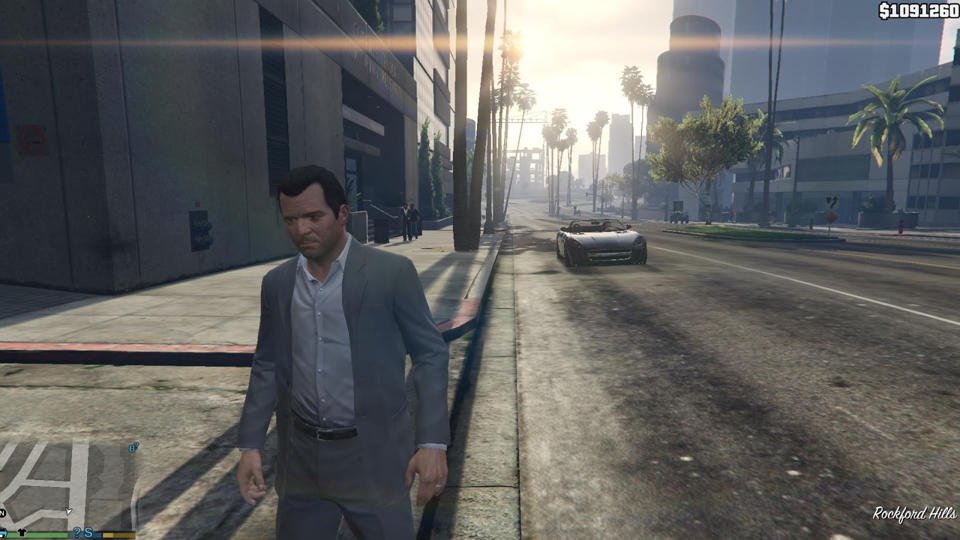
It depends on the computer and the GTA V version. Some older PCs can run GTA V Legacy with reduced settings, while GTA V Enhanced has different hardware demands. Check the requirements for the exact version you own.
Which graphics settings should I lower first?
Start by reducing resolution if the GPU is struggling. Turn off MSAA, lower shadows and reflections, reduce grass quality, and lower population density if crowded areas cause slowdowns. Test changes individually.
Does more RAM increase GTA 5 FPS?
Not always. Additional RAM can help when memory is insufficient, but it will not automatically improve performance if the main limitation is the processor or graphics card.
Does an SSD increase FPS?
An SSD generally helps with loading and responsiveness. It does not guarantee a meaningful increase in average FPS, although it may help with certain loading or streaming-related issues.
Why does GTA 5 lag even when my FPS seems high?
High average FPS does not always mean smooth gameplay. Sudden frame-time spikes, background activity, overheating, or network problems can still cause stuttering or delayed responses.
Are FPS booster applications worth installing?
Be cautious. Many applications promise unrealistic improvements or make changes that do not address the real problem. Begin with built-in Windows tools, official drivers, in-game settings, and the game’s own troubleshooting options.
Final Thoughts
Improving GTA 5 performance on a low-end PC starts with understanding your hardware and making sensible changes. Lower graphics settings, reduced resolution, fewer background applications, appropriate drivers, and good cooling can help in the right circumstances.
There is no single setting that works perfectly for every computer. Test your changes, record the results, and focus on the bottleneck that affects your system most.
If your PC still struggles after these steps, compare its specifications with the requirements for your version of GTA V before spending money on upgrades.
At GamingXHub, our goal is to help gamers make informed decisions through practical guides, clear explanations, and reliable sources.
Sources and Further Reading
- Rockstar Games Support: GTA V PC troubleshooting
- Microsoft Support: Tips to improve PC performance in Windows
- NVIDIA: Grand Theft Auto V PC graphics and performance guide
FOR MORE INFO CLICK HERE